Darwin Academy · Connect a service
Let Darwin answer your Instagram DMs
Once this is set up, every Instagram DM caught by this Default Reply flow goes through ManyChat to Darwin. An agent drafts a reply — and nothing goes out until you approve it, from your dashboard or your phone. If your computer is off, Darwin catches up on missed messages the moment it's back on — though it can only reply within Instagram's 24-hour window.
What you need
- A ManyChat Pro account connected to your Instagram.
- Darwin with a public address — a tunnel must be running under Settings → Remote access (e.g. your-name.darwinaiassistant.com). ManyChat needs somewhere to deliver messages.
- About 10–15 minutes, following this guide.
Step 1 — Darwin: Settings → Communication → ManyChat
In Darwin, open Settings → Communication → ManyChat and fill in:
- Webhook secret (X-Darwin-Hook) — invent a random string, at least 32 characters (the server rejects anything shorter). Until this is set, the webhook doesn't exist for the outside world. You'll paste this same string into ManyChat shortly.
- ManyChat API token — in ManyChat: Settings → API → copy the token. Darwin uses it to send replies and to pull messages it missed.
- Who drafts / who reviews / approval wait — leave the defaults until you have a reason to change them.
Save. No restart needed.
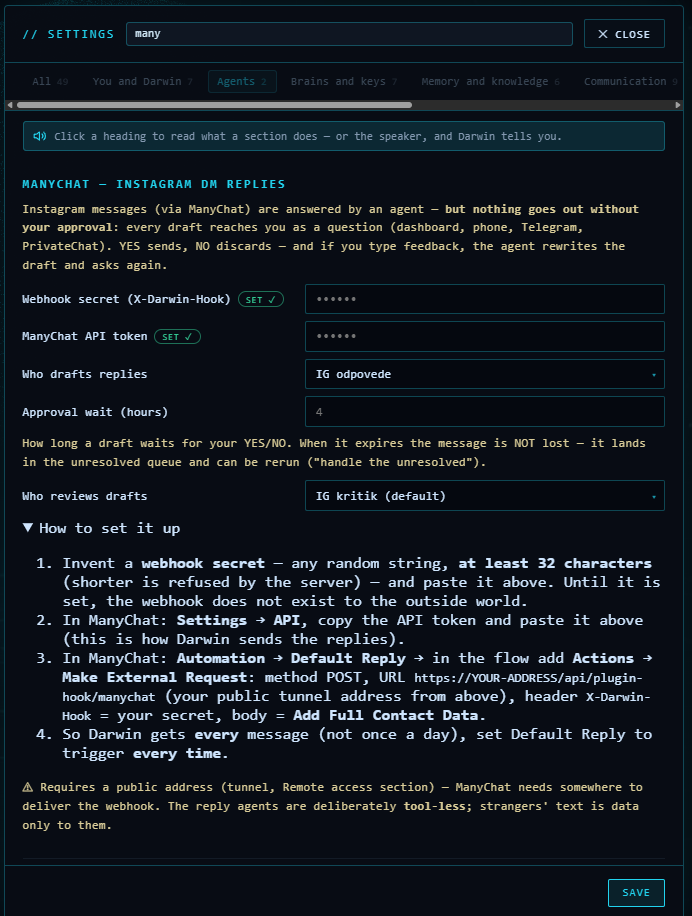
Darwin's ManyChat settings — secret, API token, and who drafts and reviews.
Step 2 — ManyChat: two custom fields
In ManyChat create two text fields (Settings → Fields → Custom User Fields → New field, type Text):
darwin_ok— says whether delivery to Darwin succeeded,darwin_missed— flags messages that didn't get through during downtime; Darwin looks them up later using this mark.
Step 3 — ManyChat: the Default Reply flow
Automation → New Automation → Start From Scratch (fig. 1), or edit your existing Default Reply flow.
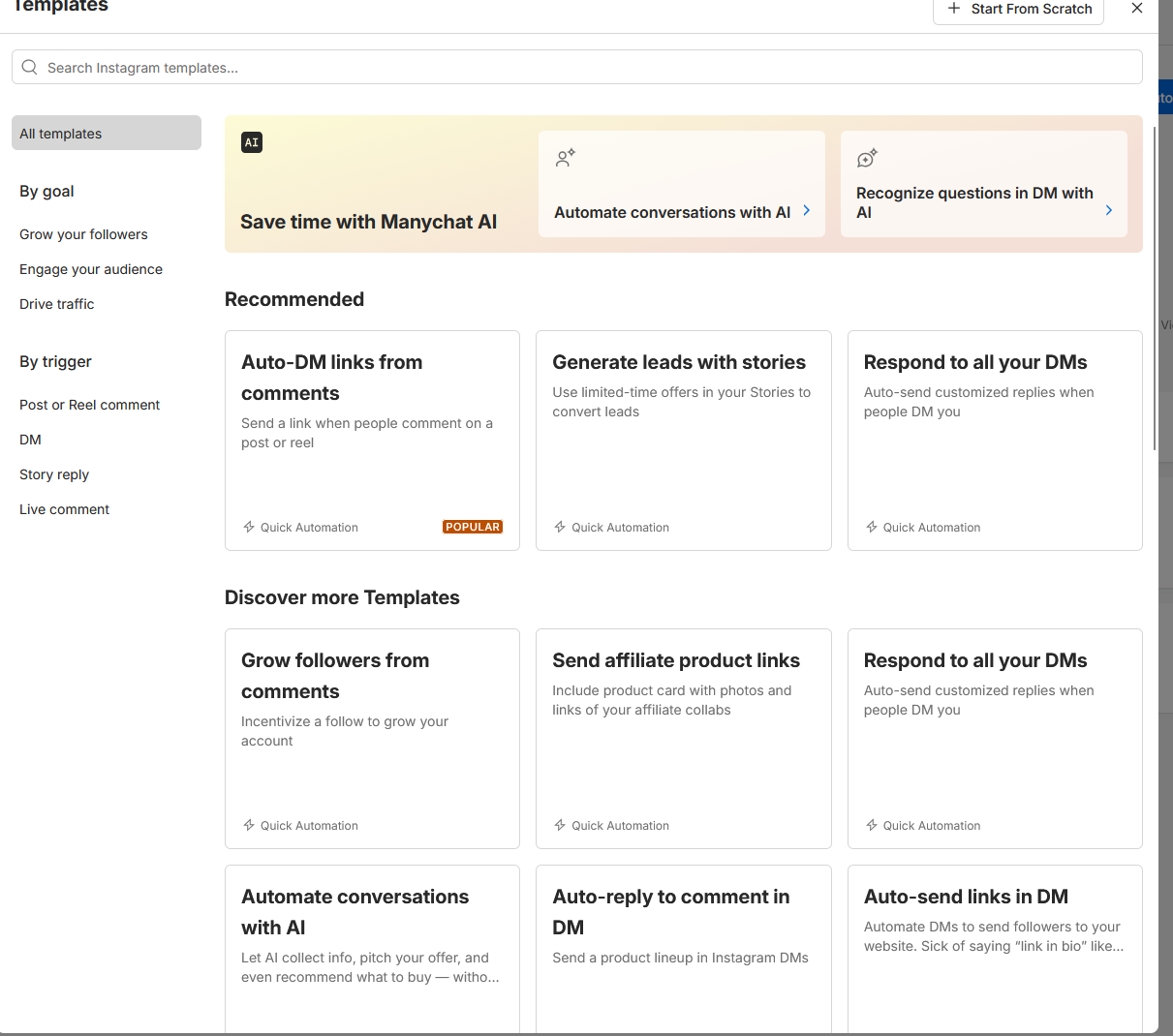
Fig. 1 — the template gallery; Start From Scratch is top right.
Build the flow exactly like this (final shape in fig. 2):
Trigger: User sends a Direct Message (Default Reply)
 -> Send Message: “Got it, let me check and get back to you.”
 -> Actions:  1) Set User Field darwin_missed = 1
              2) Set User Field darwin_ok = 0
              3) External Request
 -> Condition: darwin_ok is v2
      yes -> Actions #1: Set User Field darwin_missed = 0
      no  -> (leave the branch empty)
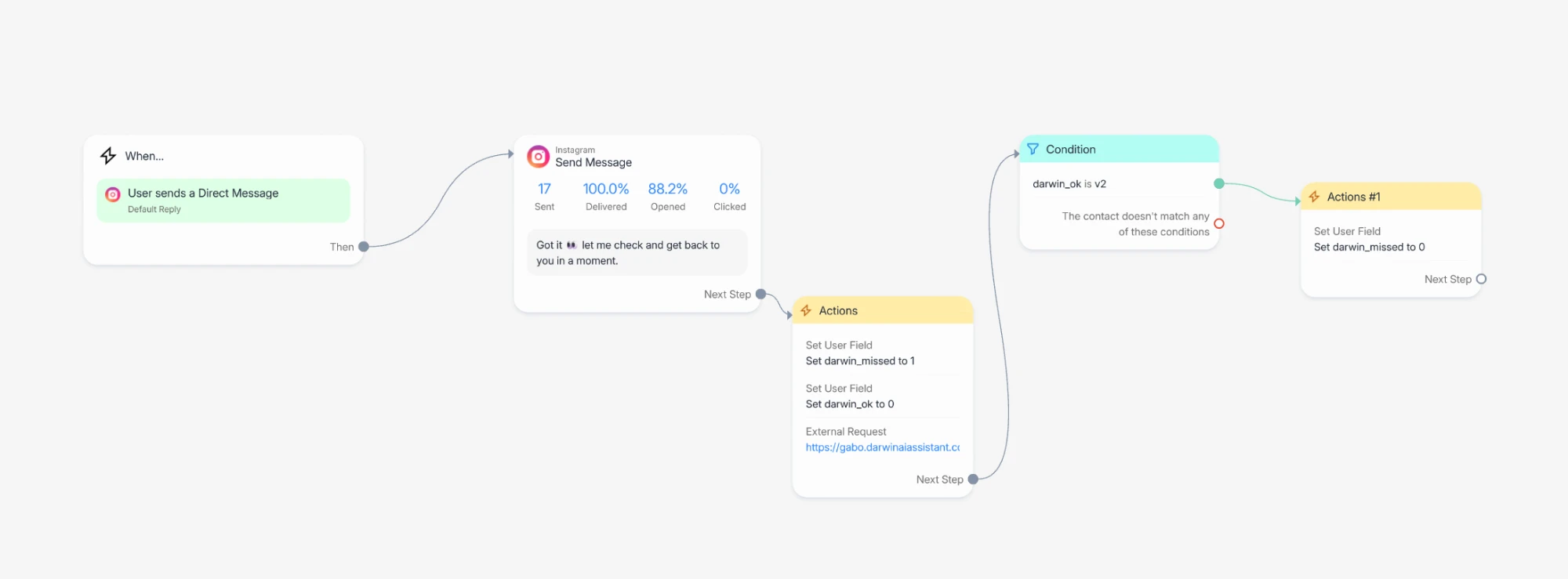
Fig. 2 — the finished Default Reply flow: mark before the request, unmark only after confirmed success.
Why this order: every message is first marked “undelivered” (darwin_missed = 1) and unmarked only once delivery demonstrably succeeded — the darwin_ok field receives the value v2 from the server's response. If delivery fails (computer off, outage), the mark stays and Darwin fetches the message later by itself.
- In the condition use the exact comparison is v2 (fig. 3) — not “has any value”; zero is a value too.
- Write the field values as plain text
1/0— ManyChat has no “clear field” option. - Switch the Default Reply trigger to every time — otherwise ManyChat delivers only one message per 24 hours per person.
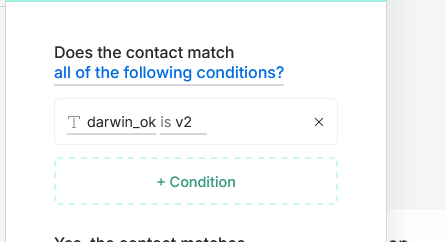
Fig. 3 — the success condition: darwin_ok is v2.
Note: Default Reply catches only messages that don't match your keyword automations — anything a keyword flow already handles never reaches this flow.
Step 4 — the External Request (the heart of it)
In the Actions block click + Action → External Request and open Edit Request (fig. 4). Fill in:
| Field | Value |
|---|---|
| Request Type | POST |
| Request URL | https://YOUR-ADDRESS/api/plugin-hook/manychat |
| Headers | X-Darwin-Hook = your secret from step 1 |
| Body | Full Contact Data (ManyChat's option — name, id, message text) |
| Response mapping | JSONPath $.version → field darwin_ok (fig. 5) |
YOUR-ADDRESS is your own tunnel address from Darwin's Settings → Remote access — the screenshots show ours as an example.
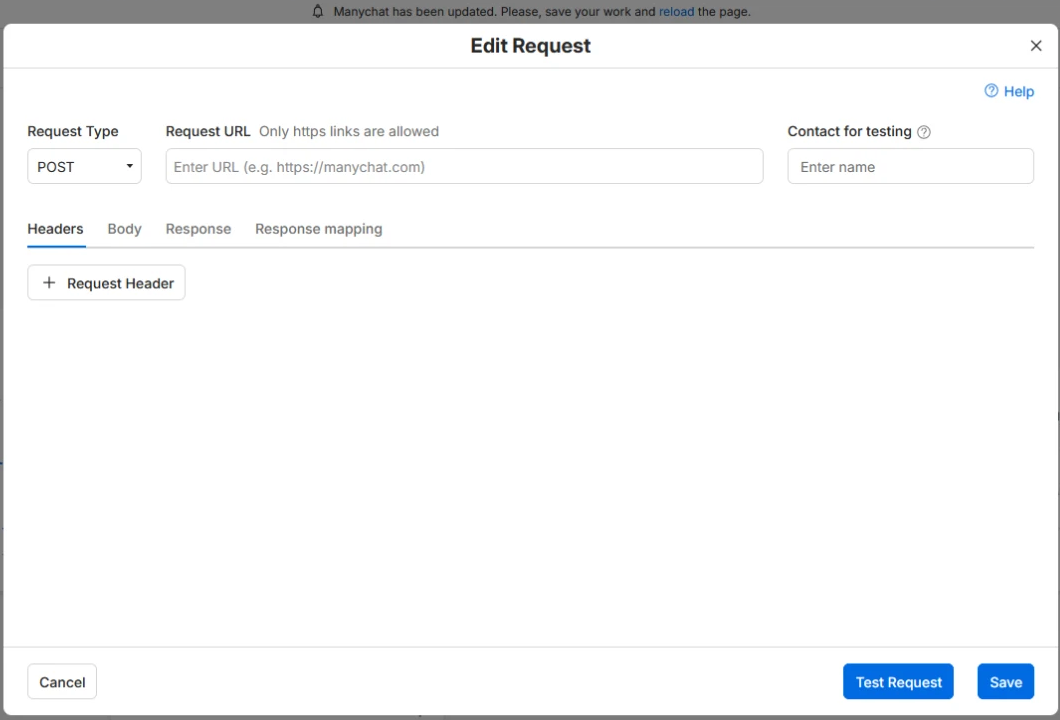
Fig. 4 — Edit Request: the URL and the Headers / Body / Response mapping tabs.
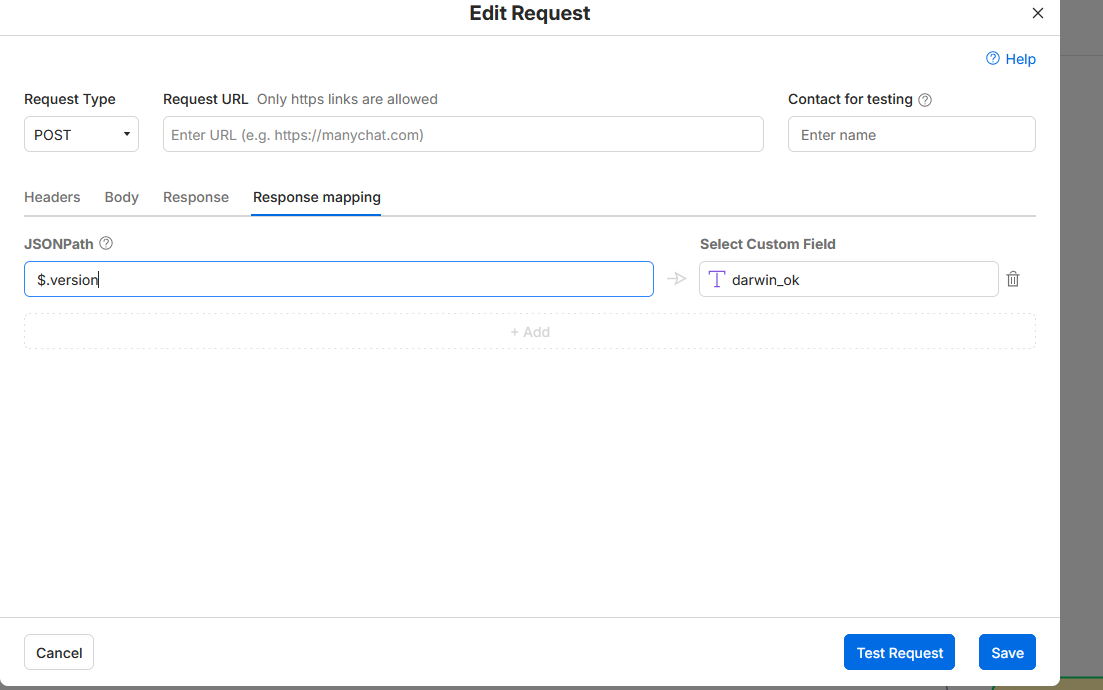
Fig. 5 — Response mapping: $.version → darwin_ok.
Then click Test Request — it must return 200 OK with the body {"version":"v2",…} (fig. 6). On errors, check your tunnel address and the secret (at least 32 characters, identical to Settings). Finally Save, and Set Live on the flow.
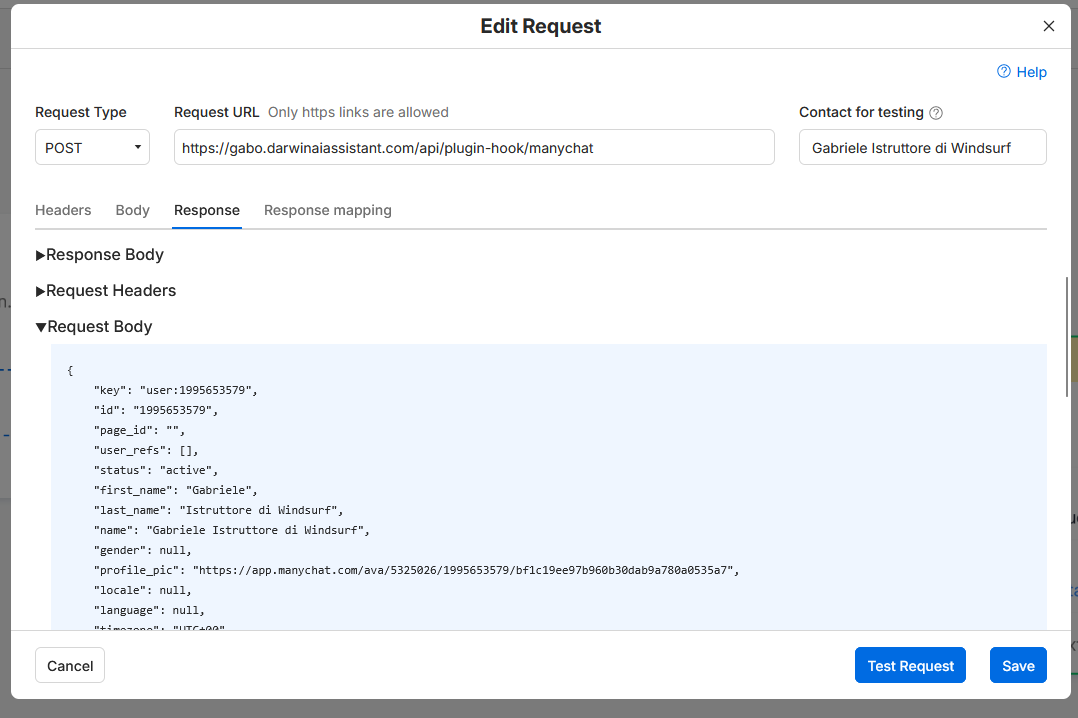
Fig. 6 — a successful test: 200 OK, version v2, Full Contact Data in the request body.
Step 5 — try it
- From another Instagram account, send your page a message.
- Within seconds the automatic acknowledgement arrives (“Got it…”).
- An approval bubble appears in Darwin: the person's message + the draft reply. YES sends it, NO discards it — and if you type feedback instead, the agent rewrites the draft and asks again.
- Once approved, the reply goes out to Instagram.
How it runs from here (nothing left to configure)
- Approvals: you have 4 hours to decide (configurable in Darwin Settings); after that the message lands in the unresolved queue — ask Darwin “what's unresolved in ManyChat” and say “handle it” to rerun the round. Nothing is lost.
- Computer off: messages get marked in ManyChat (
darwin_missed = 1) and Darwin fetches and processes them on startup and every 30 minutes after. “Catch up on ManyChat” does it immediately. - The only hard limit is Instagram itself: a business can reply only within 24 hours of the person's last message (Meta's rule). Older messages are dropped — they can no longer be sent.
- Safety: the drafting agents deliberately have no tools — strangers' text is data only to them. And not a single reply leaves without your explicit YES.
Your Instagram answers itself — in your tone, with your approval, and nothing slips through while your computer sleeps.
Don't have Darwin yet?
Darwin runs on your own PC, talks back in a real voice, and actually does the work — email, documents, agents, memory that stays yours.
See Darwin ›